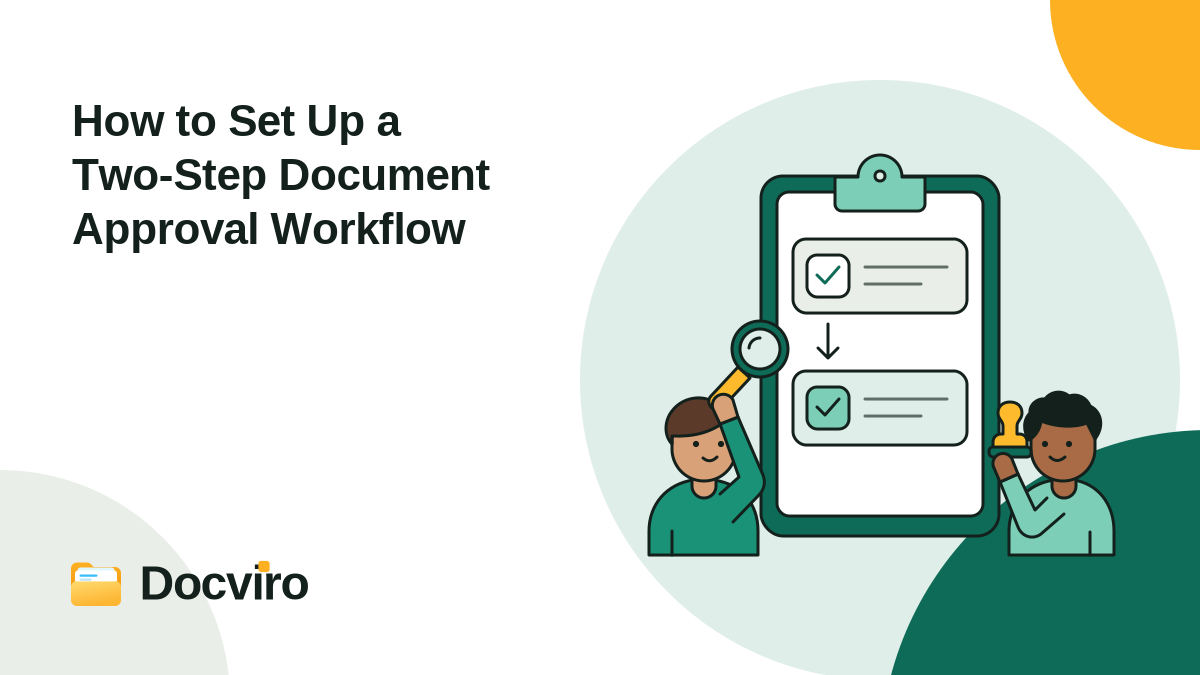
A two-step document approval workflow sends a document to two people in a fixed order. First, a reviewer checks that the content is accurate and complete. Then an approver with real authority decides whether the business accepts it. The document becomes final only when both have signed off. If either one rejects it, it goes back to the author with comments.
Setting one up takes seven steps:
- Choose which document types need two-step approval.
- Assign each step to a role, not a named person.
- Write simple routing rules.
- Decide what happens when a document is rejected.
- Set deadlines and backups.
- Lock the approved version and keep a record of every decision.
- Pilot the workflow on one document type before rolling it out.
The rest of this guide walks through each step, with example setups and the mistakes that most often break a new workflow in its first month.
What a two-step approval actually is
Most approval problems come from mixing up two different jobs. Reviewing asks: is this right? Approving asks: do we accept this? Splitting the two lets the right person answer each question, and stops a busy manager from proofreading figures they are not best placed to check.
| Step 1: Review | Step 2: Approval | |
|---|---|---|
| Main question | Is it correct, complete and consistent? | Should the business accept it? |
| Typical person | Subject expert, peer or team lead | Manager, budget owner or director |
| What they check | Figures, wording, attachments, format, policy fit | Cost, risk, authority, timing |
| Possible outcomes | Pass to approver, or return with edits | Final approval, or reject |
| Effort | Detailed reading | Focused decision |
When two steps is the right number
Two steps suit documents with real consequences that don't need a committee. That covers anything involving money, legal commitments, published policies or customer-facing material. Vendor invoices, purchase requests, standard contracts, SOPs and HR policies are typical candidates.
Other cases call for a different number of steps:
- One step is usually enough for low-risk internal documents, such as meeting notes or internal how-to pages.
- Three or more steps make sense when separate functions must each sign off. A large contract that needs legal, finance and an executive is an example.
Every extra step adds waiting time, so only add one when it addresses a specific risk.
There is a control benefit too. When the person who prepares a document is not the person who approves it, you have segregation of duties. This is a basic internal control that auditors look for, especially in finance processes such as payments and expense claims.
Step 1: Choose the documents that go through it
Don't route everything. A workflow that catches every file trains people to click approve without reading. Make a short list of document types and the reason each one needs two sign-offs. Useful criteria:
- Value: anything above a spending threshold you set, such as purchase requests or invoices over a certain amount.
- External impact: documents that go to customers, vendors, regulators or the public.
- Controlled documents: policies, procedures and work instructions that people must follow.
- Regulated content: documents covered by a quality standard, a contract clause or a legal requirement.
For each document type, decide what starts the workflow. Common triggers are:
- uploading the file to a specific folder
- applying a metadata tag such as 'Contract' or 'Policy'
- the author changing its status to 'Ready for review'
A clear trigger means nobody has to remember to start the process.
Step 2: Assign roles, not names
Write the workflow around roles such as 'Finance lead', 'Quality manager' or 'Department head', not around individual people. When someone goes on vacation or leaves the company, you update the person behind the role once. You don't have to rebuild every workflow.
Four rules keep the roles meaningful:
- The reviewer is not the author. Someone else should check the work.
- The approver is not the reviewer. Otherwise you have one step with two clicks.
- The approver has actual authority. If your company has a signing authority matrix or spending limits, the approver for each document type should match it.
- Every role has a named backup. Without one, a single absence can stall every document in the queue.
Step 3: Write the routing rules
Routing rules describe how a document moves. Keep them short enough to fit on one page. Most two-step workflows need only four elements:
- Trigger: what starts the workflow (see Step 1).
- Order: review first, then approval. The steps are sequential so the approver sees a document that has already been checked.
- Conditions: optional branches. For example, purchase requests under your threshold go to the department head, and anything above it goes to the finance director.
- Notifications: who is told when a step starts, finishes or is rejected.
A written rule might read: 'Supplier contracts saved to the Contracts / Pending folder are reviewed by the Operations lead, then approved by a Director. If the contract value exceeds the Director's limit, approval goes to the CEO instead.'
If a rule needs more than a couple of sentences to explain, simplify it. Complex branching is hard to test and harder for staff to trust.
Step 4: Decide how rejections and changes work
The rejection path is the part teams most often skip, and it is where documents get lost. Decide in advance:
- Where a rejected document goes. Usually back to the author, with the status changed to 'Changes requested'.
- Whether comments are required. They should be. A rejection without a reason sends the author guessing.
- Where the resubmitted document restarts. A good rule of thumb: if the changes are substantive, restart at Step 1 so the reviewer sees the final content. If they are purely cosmetic, such as a typo or a formatting fix, the document can return straight to the approver.
- What counts as cosmetic. Write a one-line definition so people don't argue about it case by case.
Step 5: Set deadlines, reminders and backups
An approval workflow without deadlines turns into a waiting room. Give each step a target time that fits the document type. For example:
- a couple of business days for a detailed review
- a single business day for the approval decision
Then decide what happens when a deadline passes:
- Reminder: the assignee gets a nudge.
- Escalation: after a further delay, the task goes to the backup or the assignee's manager.
- Delegation: when an approver knows they will be away, they hand their tasks to a named delegate for a set period.
Avoid 'approval by silence' for anything important. Automatically approving a document because nobody responded removes the control the workflow exists to provide.
Step 6: Lock the approved version and keep the record
An approval only means something if you can prove which version was approved. A common failure is approving one draft and then sending or signing a slightly different one. Protect against it in two ways.
First, keep the document in one place with version control rather than emailing attachments around. Reviewers and approvers should all open the same file. Any edit should create a new version, so it is clear when the content changed after approval.
Second, capture an audit record for every decision. At minimum, record:
- who reviewed and who approved
- the date and time of each action
- the version each person acted on
- the decision (approved, rejected or changes requested)
- any comments
Keep these records for as long as your retention policy requires for that document type. Contracts and financial documents usually need to be kept longer than routine internal files.
Step 7: Pilot, then roll out
Start with one document type that has steady volume and a clear owner. Purchase requests or vendor invoices work well. Run the workflow for a few weeks and track three things:
- how long each step takes
- how often documents are rejected
- where they stall
Ask the reviewers and approvers what slowed them down. Adjust the rules, then add the next document type.
Training can be short. Most people need to know where their tasks appear, how to approve or reject, and how to leave a useful comment. Write the routing rules for each document type in a one-page reference and store it where everyone can find it.
Example two-step workflows
These are starting points to adapt, not fixed templates.
| Document type | Step 1: Reviewer | Step 2: Approver | Typical trigger |
|---|---|---|---|
| Vendor invoice | AP clerk checks against PO and receipt | Budget owner or finance manager | Upload to Invoices folder |
| Purchase request | Team lead checks need and quote | Department head or finance, by amount | Form submitted |
| Customer or supplier contract | Operations or legal reviewer | Director with signing authority | Status set to Ready for review |
| SOP or work instruction | Process owner | Quality manager | New version saved in Procedures |
| HR policy | HR generalist | HR director or owner | Draft marked final |
| Marketing collateral | Product or subject expert | Marketing lead | Upload to Campaign folder |
For a detailed walkthrough of the finance case, see how to automate invoice approvals.
Common mistakes to avoid
- The author approves their own work. Set the workflow so the author can't be assigned to either step.
- Steps are tied to named people. One resignation and the workflow breaks.
- Approving attachments in email. Comments get scattered and nobody knows which version is final.
- Too many steps. Each one adds delay. If two people already check a document thoroughly, a third rarely adds much.
- No deadlines. Documents sit in someone's queue for weeks.
- Comments live in chat. If the reasons for a rejection aren't recorded with the document, they are lost at audit time.
- No rejection path. Rejected documents end up in limbo with no clear owner.
When an approval also needs a signature
An internal approval and a legally binding signature are different things. Clicking approve in a workflow records that your business accepted a document internally. A contract with another party usually also needs a signature from someone authorized to sign.
In the United States, the ESIGN Act and UETA generally give electronic signatures the same legal effect as handwritten ones for most business transactions. There are exceptions, such as wills and certain notices.
In the EU, eIDAS defines three levels of electronic signature: simple, advanced and qualified. Only a qualified electronic signature has the same legal effect as a handwritten one throughout the EU. Even so, a simple or advanced signature can't be denied legal effect solely because it is electronic.
A common pattern is to run the two-step internal approval first, then send the approved version for electronic signature.
Some other rules also shape how you set up approvals:
- ISO 9001. If you follow it, the standard requires documented information to be reviewed and approved for suitability and adequacy before it is issued. A two-step workflow with recorded decisions is a straightforward way to show this.
- GDPR. If documents contain personal data, limit workflow participants to people who need access for that task.
- HIPAA. If documents contain protected health information, the same principle applies.
How Docviro handles two-step approvals
Docviro's approval workflows route a document through reviewers and approvers in the order you define. Each person can approve, reject or request changes, and leave comments. The pieces described in this guide work together as follows:
- Folder permissions control who can see documents in each folder, so only the people involved in a workflow have access to sensitive files.
- Version history keeps every version of a document. You can see which version each reviewer and approver acted on, and whether it changed afterward.
- Audit logs record actions on documents, giving you a record of who did what and when for internal reviews or external audits.
- Electronic signatures can follow approval when a document needs a binding signature. Each signed document comes with a certificate of completion and a public verification page.
- Secure sharing with expiring links lets you send a document to an outside reviewer, such as an accountant or outside counsel, without granting permanent access.
- Retention rules keep approved documents and their records for the period you set.
- AI summaries can give an approver a quick overview of a long document before they read it. The approver should still read what they are approving.
FAQ
What is the difference between a reviewer and an approver?
A reviewer checks that a document is accurate, complete and consistent with your policies. An approver decides whether the business accepts it, based on cost, risk and their authority. Keeping the roles separate means each person focuses on the question they are best placed to answer.
Should the two steps run in order or at the same time?
For most two-step workflows, run them in order: review first, then approval. That way the approver only sees documents that have already been checked and corrected. Parallel review makes more sense when several experts must each check different parts of the same document.
What happens if an approver is on vacation?
Give every role a named backup, and let approvers delegate their tasks for a set period before they leave. Add an escalation rule so a task moves to the backup or a manager if it sits past its deadline. Avoid auto-approving documents just because nobody responded.
Is clicking approve the same as an electronic signature?
Not necessarily. An approval click records an internal decision, while a contract with an outside party usually needs a signature from an authorized signer. Under ESIGN, UETA and eIDAS, electronic signatures are generally valid. Use a proper e-signature step when the document creates a legal commitment.
How long should a two-step approval take?
It depends on the document type, but set explicit targets for each step and measure them during your pilot. Routine items like invoices and purchase requests should move in a few business days at most. If documents regularly take longer, look for a missing backup, an unclear rejection path or too many documents routed through the workflow.