Document management software with role-based access lets you decide who can see, edit, share or delete files based on the job a person does, not on who happened to receive a link. Instead of granting access file by file, you define a handful of roles (for example Finance, HR, Operations and External Reviewer), attach permissions to folders, and add or remove people from roles as they join, change jobs or leave. The result is less accidental oversharing, faster onboarding and offboarding, and a clear answer when someone asks who could open a document.
For a small or mid-sized business, the right tool is one where permissions are simple enough that an office manager can maintain them, granular enough to separate view from download from edit, inherited through folders so you are not managing thousands of exceptions, and backed by an audit log that records who actually accessed what. This guide explains what to look for, how to design your roles before you buy, how to test permissions during a trial, and where regulations such as GDPR and HIPAA make access control more than a nice-to-have.
What role-based access means in a document management system
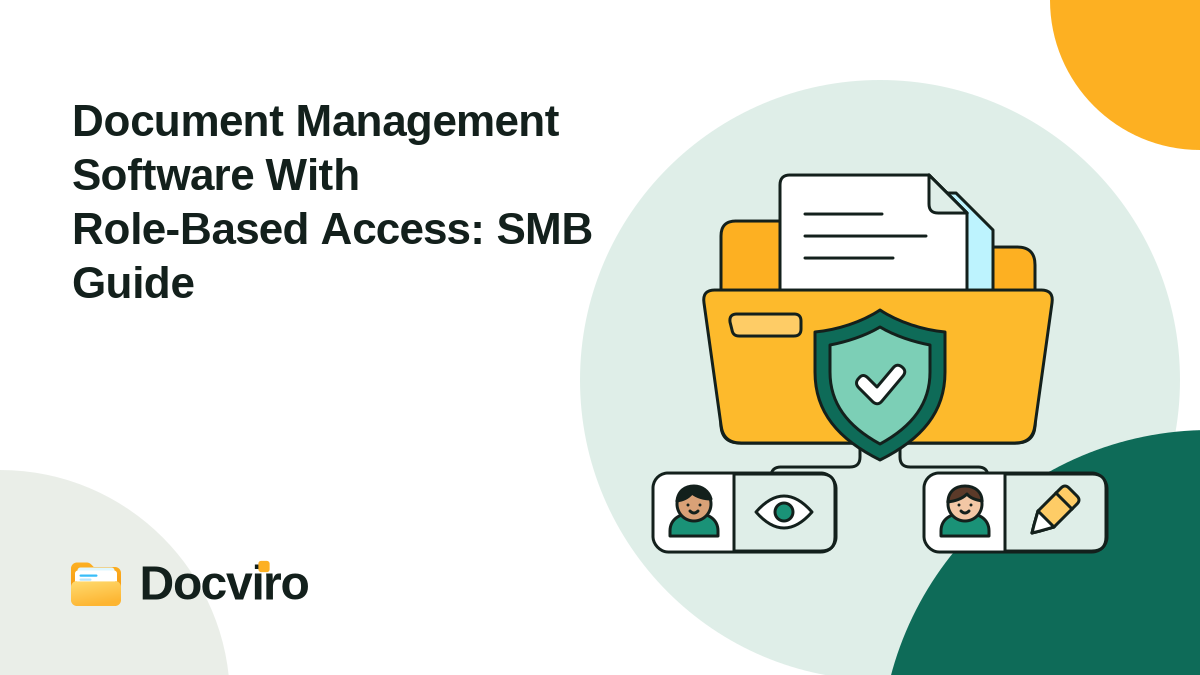
Role-based access control (RBAC) is a security model in which permissions are assigned to roles, and people are assigned to roles. Nobody gets rights directly; they inherit them from the role they hold. When an accounts payable clerk moves to operations, you change one role assignment instead of hunting through dozens of folders.
Roles, permissions and scope
Every RBAC setup has three moving parts:
- Roles or groups: named collections of people, such as Finance or Managers.
- Permissions: the actions allowed, such as view, download, edit, upload, share, delete or manage permissions.
- Scope: where those permissions apply, usually a folder, a workspace or a document type.
A rule reads like a sentence: Finance can edit everything in the Invoices folder; Managers can view it; everyone else cannot see it at all.
How RBAC differs from link sharing
Consumer-style file storage tends to work by sharing individual files or folders with individual people or links. That is convenient for a team of five, but it scales badly. Access accumulates, links get forwarded, and nobody can produce a list of who has access to payroll files. RBAC flips the default: access follows the organizational structure, and one-off sharing becomes the controlled exception rather than the main mechanism.
Some enterprise systems go further with attribute-based access, where rules depend on document metadata (for example, any contract tagged Confidential is visible only to Legal). That can be powerful, but most small businesses get the majority of the benefit from well-designed folder roles.
Signs your business needs role-based access now
You do not need a compliance audit to justify better permissions. Common triggers include:
- Payroll, HR files or bank statements live in a shared drive that the whole company can browse.
- Former employees or contractors still appear in sharing settings months after they left.
- Nobody can say with confidence who has seen a sensitive contract.
- New hires get access by copying a colleague's permissions, including access they should not have.
- You work with clients, patients or customers whose personal data you are obliged to protect.
- A customer, insurer or auditor has asked how you restrict access to their data.
If two or more of these sound familiar, permissions should be a primary evaluation criterion, not a checkbox at the end. For the wider selection process, see our checklist for choosing a document management system.
Features to look for in role-based access
Not every product that advertises permissions offers the same depth. These are the capabilities that matter in day-to-day use.
Granular permission levels
At minimum, look for separate controls for viewing, downloading, editing, sharing and deleting. The distinction between view and download matters more than buyers expect: a contractor may need to read a policy but should not keep a copy.
| Permission level | Typical actions | Good fit for |
|---|---|---|
| View only | Open and read in the browser | Staff reading policies, auditors |
| View and download | Read and save a local copy | Managers, internal reviewers |
| Edit | Upload new versions, change metadata | Document owners, department staff |
| Share | Create links or invite others | Team leads, client-facing staff |
| Delete | Remove documents or versions | Very few people, ideally admins |
| Manage permissions | Change who has access | Admins and folder owners |
If a product only offers viewer and editor, you will end up granting more access than people need.
Folder inheritance with controlled exceptions
Permissions set on a parent folder should flow down to subfolders and new documents automatically. Otherwise every new file is a potential leak. Check how the system handles exceptions, such as a restricted subfolder inside a broadly shared one, and whether it shows clearly when inheritance has been broken.
Groups, not individuals
You should be able to assign permissions to a group and manage membership in one place. Assigning rights to individual users across many folders recreates the shared drive problem inside a new tool.
Controlled external access
Clients, accountants, lawyers and suppliers often need documents. Look for a way to share with outsiders that does not require turning them into full users: links that expire, optional passwords, view-only modes, and the ability to revoke access instantly. Our guide to secure document sharing covers the options in more detail.
Audit logs
Permissions describe who could access a file; audit logs show who did. A useful log records views, downloads, edits, shares, permission changes and deletions, with user, time and document. Confirm that ordinary users cannot edit or delete log entries and that you can filter and export them.
Search and AI that respect permissions
Full-text search, OCR and AI features such as summaries or chat on documents are only safe if they honor the same permissions as the folders. A search result snippet or an AI answer can disclose sensitive content as effectively as opening the file. Ask vendors directly whether search results and AI responses are filtered by the user's access rights, and test it.
Version history and deletion safeguards
Restricting delete rights, keeping version history and applying retention rules protect you from both mistakes and malicious changes. If someone with edit rights overwrites a contract, you want the previous version back in seconds.
Admin and offboarding controls
Look for a single place to deactivate a user, see everything they had access to, and transfer ownership of their documents. Also check whether multi-factor authentication and single sign-on are available on the plan you are considering, since access rules mean little if accounts are easy to take over.
How to design your roles before you buy
Vendors demo best with a real scenario. Spend an hour mapping your own roles first.
- List your document categories. Typical small-business categories include finance, HR, contracts, operations, sales and company policies.
- List the groups of people. Use job functions, not names: owners, finance, HR, managers, staff, contractors, external parties.
- Fill in a matrix. For each category and group, decide the minimum access needed.
- Identify the exceptions. Note sensitive subsets, such as disciplinary records inside HR or executive compensation inside Finance.
- Name owners. Each folder needs a person responsible for reviewing who has access.
An example matrix for a 30-person company might look like this:
| Folder | Admin | Finance | HR | Managers | All staff | External |
|---|---|---|---|---|---|---|
| Finance and invoices | Manage | Edit | None | View | None | Expiring link only |
| HR and payroll | Manage | View (payroll) | Edit | None | None | None |
| Contracts | Manage | View | None | Edit | None | Expiring link only |
| Operations | Manage | View | View | Edit | View | Case by case |
| Company policies | Manage | View | Edit | View | View | None |
Keep the number of roles small. Five to eight roles is usually enough for a company under a few hundred people. If you find yourself creating a role for one person, that is often a sign to use a folder exception instead.
Where regulations make access control mandatory
Role-based access is good practice everywhere, and in several situations it supports specific legal obligations. These rules do not usually name a particular technology, but they expect you to limit access to sensitive information and be able to show that you do.
- GDPR (EU and EEA): Article 5 requires personal data to be processed with appropriate security, including protection against unauthorized access. Article 25 requires data protection by default, meaning personal data should not be accessible to more people than necessary. Article 32 calls for appropriate technical and organizational measures. Restricting HR and customer files to the roles that need them is a direct way to meet these expectations.
- HIPAA (US healthcare): The Security Rule includes access control standards for electronic protected health information, and the Privacy Rule's minimum necessary standard expects workforce access to be limited to what each role needs. Covered entities and business associates should be able to show who can access patient documents. Our healthcare document management and HIPAA basics guide expands on this.
- CCPA and CPRA (California): Businesses in scope must implement reasonable security procedures appropriate to the nature of the personal information they hold, and consumers can sue over certain data breaches caused by a failure to do so. Tight access control is part of reasonable security.
- ISO 27001: If you pursue certification, access control is a core area of the standard's controls, and auditors will look for documented rules and evidence of periodic review.
In every case, the audit log is what turns a policy into evidence. Being able to export who accessed a file and when is often what an auditor or regulator actually asks for.
How to test role-based access during a trial
Demos show the happy path. Use your trial to try to break things.
- Create test users for three roles, for example Finance, Staff and an external contact.
- Log in as each one in a private browser window and confirm what they can and cannot see.
- Search for a restricted term as a user who lacks access. Restricted documents should not appear in results or snippets.
- Ask the AI assistant about content in a restricted folder while logged in as an unauthorized user. It should not reveal it.
- Upload a new file into a restricted folder and confirm it inherits the right permissions automatically.
- Move a user between roles and check that access changes immediately.
- Deactivate a user and confirm their sessions and shared links stop working as expected.
- Create an expiring external link, let it expire, and try it again.
- Review the audit log to confirm every action above was recorded.
If any of these steps requires a support ticket or a workaround, factor that into your decision.
Red flags when evaluating vendors
- Permissions limited to viewer and editor, with no separate download, share or delete controls.
- No group management, so every permission is assigned to individuals.
- Search or AI features that surface content from folders the user cannot open.
- Audit logs only on higher tiers, or logs that admins can edit.
- External sharing that requires creating full paid accounts for every client.
- No clear view of what a given user can access.
Also check pricing structure. Some vendors charge for every person who touches a document, which can push businesses toward sharing accounts, the opposite of what role-based access is meant to achieve.
How Docviro handles role-based access
Docviro organizes documents in folders with permissions, so access is set at the folder level and applies to the documents inside. You can give departments their own folders, restrict sensitive areas such as payroll or contracts to the people who need them, and keep company-wide material readable by everyone.
Search, including full-text search across OCR-processed scans, and the AI features (summaries, metadata extraction and chat on documents) operate on the documents a user is allowed to access. Version history keeps earlier versions available if a file is overwritten, and retention rules help prevent documents from being removed before they should be.
For people outside your organization, Docviro offers secure document sharing with expiring links, so a client or accountant can receive what they need without becoming a permanent user. Audit logs record activity on documents, giving you a record of who accessed, changed or shared files when you need to review access or answer an auditor's question. Approval workflows and electronic signatures run inside the same permission structure, so documents do not have to leave the system to be reviewed or signed.
FAQ
What is the difference between role-based access and folder permissions?
Folder permissions define what can be done in a specific location, while role-based access defines who gets those permissions based on their job. In practice, most document management systems combine the two: you assign roles or groups to folders. The benefit of thinking in roles is that you change one assignment when someone's job changes, rather than editing many folders.
How many roles should a small business create?
Most small and mid-sized businesses work well with five to eight roles, such as Admin, Finance, HR, Managers, Staff and External. More roles make permissions harder to review and easier to get wrong. Handle rare cases with folder-level exceptions rather than new roles.
Do AI features in document management software bypass permissions?
They should not, but it is worth verifying. A well-designed system limits AI summaries, chat answers and search results to documents the user is already allowed to open. During a trial, log in as a restricted user and ask the AI about a restricted document to confirm it does not disclose the content.
How often should we review access rights?
A quarterly review is a reasonable default for most small businesses, with an immediate review whenever someone leaves or changes roles. Folder owners should confirm that the people and groups with access still need it. Regulated businesses, or those pursuing ISO 27001, may need to document these reviews as evidence.