The most reliable way to evaluate OCR document management software is to run a free trial on your own documents, not the vendor's samples. Pull 30 to 50 real scans that represent your daily work, including the ugly ones: faxed invoices, phone photos of receipts, stamped contracts and multi-page reports. Write down the searches your team actually runs before you upload anything. Then upload the set, run each search and record whether the right document comes back near the top.
That simple test tells you more than any accuracy claim on a product page. You learn whether the software finds your vendor names, invoice numbers and dates, how long processing takes, and whether your team can get answers without opening ten files. The rest of this guide walks through how to build the test set, what to measure, how to score the results and the mistakes that make trials misleading.
Why vendor demos don't tell you much
Demo documents are usually clean, digitally generated PDFs or high-quality scans in a single language with standard fonts. Almost any modern OCR engine reads those well. Your documents are different. They come from a ten-year-old multifunction printer, a supplier who still faxes, a field technician with a phone camera, or a filing cabinet full of carbon copies.
OCR quality depends heavily on the input: resolution, contrast, skew, fonts, tables, stamps, handwriting and language. Two products that look identical on a demo can behave very differently on a crooked, low-contrast scan of a utility bill. Search behavior matters too. A tool can recognize the text correctly but still bury the document on page three of the results because it ranks poorly or lacks filters.
If you want background on how recognition works under the hood, see OCR Explained. For this guide, what matters is a repeatable test you can run in an afternoon.
Step 1: Build a test set from your own documents
What to include
Aim for variety over volume. A good small-team test set covers:
- Clean digital PDFs as a baseline, such as invoices exported from accounting software
- Office scanner output at whatever settings your team uses today
- Phone photos of receipts, delivery notes or whiteboards, taken in normal lighting
- Faxed or photocopied pages with noise, streaks or faded text
- Multi-page documents like contracts or reports, where the term you search for sits on page 7, not page 1
- Tables and forms, such as purchase orders, timesheets or inspection checklists
- Stamps, signatures and handwritten notes, if your team relies on them
- Other languages you deal with, for example German or Spanish supplier documents if you work with EU partners
- Rotated or skewed pages, because someone always feeds paper in sideways
How many documents
Thirty to fifty files is enough for a small team to see patterns without spending days on it. Make sure each category above has at least three or four examples, so one lucky or unlucky file doesn't skew your conclusion. Keep a copy of the set in a folder so you can rerun the exact same test on a second or third product.
Handle sensitive data properly
Trials are still real uploads to a vendor's servers. Before you upload, decide what is acceptable:
- If documents contain personal data of people in the EU, GDPR applies. A vendor that stores and processes that data for you acts as a processor, and GDPR Article 28 requires a data processing agreement. Ask whether the trial is covered by one.
- If you are a US healthcare provider, health plan or business associate and the documents include protected health information, HIPAA requires a business associate agreement with the vendor before you share PHI. Many vendors do not sign one for trial accounts.
- If in doubt, use documents with no personal data, redact sensitive fields on copies, or create realistic look-alikes by scanning printed test pages through the same scanner.
The goal is to test real scan quality and layouts, and you can usually do that without exposing customer or patient records.
Step 2: Write your search questions before you upload
This is the step most teams skip, and it is the one that makes the test objective. For each document, write one or two searches someone on your team would realistically type. Base them on how people ask for documents today, for example in chat messages or emails to the office manager.
Good test queries include:
- Exact identifiers: an invoice number, PO number, policy number or contract reference
- Names: a supplier, client, employee or property address
- Phrases from the body text: a clause, a product name, a part number
- Dates and amounts: a specific total or a date range, if the product supports filters
- Words from hard areas: text inside a table, near a stamp or in small print
Record each query in a spreadsheet next to the file name of the document it should find. Now you have an answer key, and you can score any product against it.
Step 3: Run the test
Upload the way you will actually work
If your team will scan directly to the system, test that path. If people will drag files from a shared drive, do that. If you plan to forward attachments by email or bulk-import a folder, try it. Note anything that breaks, such as unsupported file types like TIFF or HEIC, size limits or files that silently fail to process.
Check that a text layer exists
After processing, open a few scanned PDFs and try to select or copy text. If nothing highlights, OCR either has not run yet or failed on that file. Also check whether you can download a searchable version of the file, since you may need the recognized text outside the system later.
Measure what matters
For each query in your answer key, record:
- Found or not found: Did the correct document appear in the results at all?
- Rank: Was it in the top three results, or further down?
- Time to answer: How long did it take a team member to find what they needed, including opening the file?
- Processing time: How long after upload did the document become searchable?
For a handful of difficult scans, also do a spot check. Pick five lines of text, compare the recognized text with the original and note obvious errors, such as a 0 read as an O in an invoice number. You do not need a formal character accuracy rate; a pattern of errors in the fields you search most is what matters.
Step 4: Score and compare the results
A simple scoring sheet keeps the comparison fair when you test more than one product. Here is a rubric small teams can use as is or adapt:
| Criterion | What to check | Score (0 to 2) |
|---|---|---|
| Clean PDFs | Correct document in top 3 for every query | 0 = misses, 1 = found but ranked low, 2 = top 3 |
| Poor scans and faxes | Identifiers and names found | Same scale |
| Phone photos | Text recognized despite angle and lighting | Same scale |
| Tables and forms | Values inside tables searchable | Same scale |
| Multi-page documents | Terms deep in the file found | Same scale |
| Other languages | Accented and non-English words found | Same scale |
| Processing time | Searchable within a time your team accepts | 0 = too slow, 2 = fast enough |
| Usability | Team members find answers without help | 0 = confused, 2 = intuitive |
Add up the totals, but also read the notes. A product that scores slightly lower overall but never misses an invoice number may be the better choice for a finance team. Weight the criteria by what your team searches for most.
What to check beyond raw OCR
Recognized text is only the start. During the same trial, look at the features that decide whether search is useful day to day:
- Typo tolerance: Does a search for a slightly misspelled supplier name still find the document? OCR errors and human typos both happen.
- Filters: Can you narrow by folder, file type, date or custom fields like vendor or document type?
- Metadata extraction: Does the software pull out key fields such as dates, totals or parties, so you can sort and filter instead of reading?
- Permissions in search: Confirm that users only see results for documents they are allowed to open. Test with a restricted account.
- AI features: If the product offers summaries or chat on documents, check that answers point to the source document so staff can verify them.
- Versions: When someone uploads a corrected scan, does search pick up the new version, and can you still see the old one?
- Exit path: Can you export files and their text if you leave?
For a wider checklist that goes beyond OCR, including permissions, retention and pricing, see How to Choose a Document Management System.
Common mistakes when testing OCR software
- Testing only clean files. You will be impressed and then disappointed in month two.
- Searching for what you can see on screen. If you look at a document and type a word from it, you bias the test. Use the answer key you wrote beforehand.
- One tester only. Ask two or three people who will use the system daily to run the same queries. They search differently than whoever runs the trial.
- Ignoring processing delays. A scan that takes a long time to become searchable can break workflows like same-day invoice approval.
- Judging by the OCR alone. Poor folder structure and missing metadata cause as many lost documents as bad recognition.
- Forgetting volume. If you plan to migrate thousands of old scans, ask how bulk OCR of existing files is handled and whether it counts toward storage or usage limits.
Improve your scans before blaming the software
If results disappoint across every product you test, the input may be the problem. A few adjustments usually help:
- Resolution: 300 dpi is a common recommendation for text documents. Very low resolutions make small print hard to read; very high ones mostly increase file size.
- Color mode: Grayscale often works better than pure black and white for faded or colored paper.
- Alignment: Use the document feeder guides and remove staples so pages go through straight.
- Phone captures: Use a scanning app that crops and flattens the page instead of a regular photo.
- One document per file: Avoid scanning a whole stack into one PDF. Separate files are easier to find, name and permission.
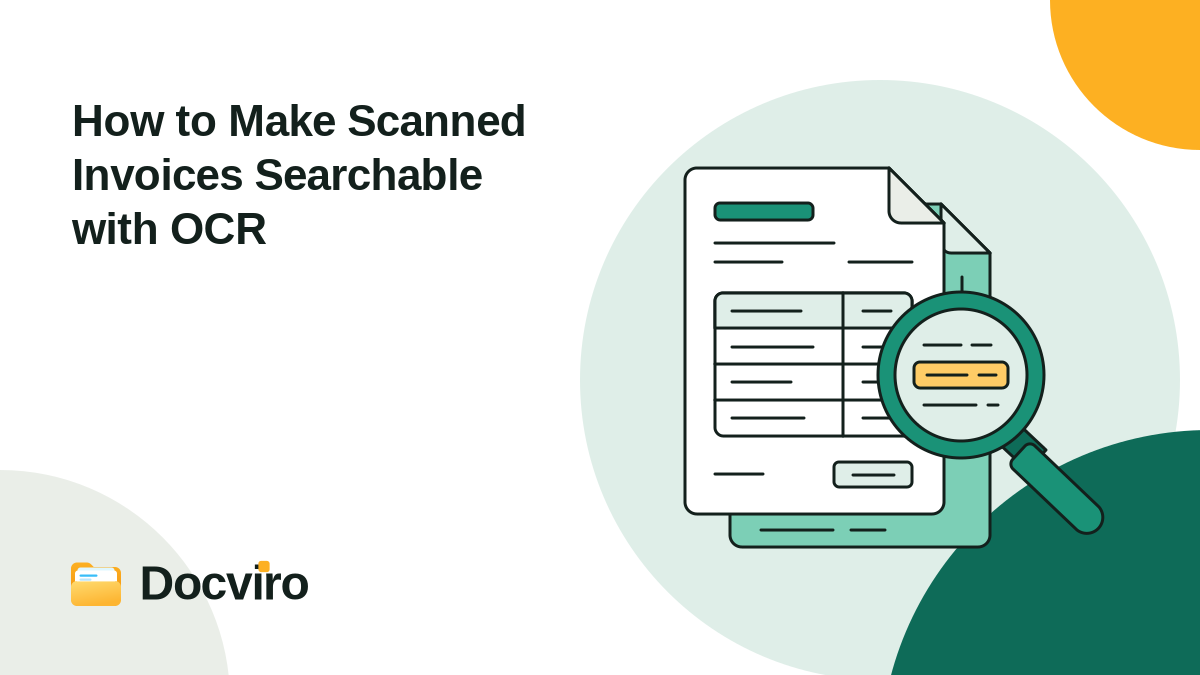
Rerun a few of your hardest test files after changing settings. If results improve sharply, update your scanning instructions before rollout. Our guide on how to make scanned invoices searchable with OCR covers this in more detail for accounts payable.
How Docviro handles OCR and search
Docviro runs OCR on scanned PDFs and images you upload, so their text becomes part of full-text search alongside digital documents. You can use the same test described above during a trial: put your test set in its own folder, restrict access with folder permissions, and run your answer-key queries.
Beyond raw text search, Docviro offers AI features that work on the recognized content:
- Metadata extraction to pull fields such as dates, amounts or parties from documents, which you can then use to organize and find files
- AI summaries to get the gist of a long scanned contract or report without reading every page
- Chat on documents to ask questions about a file's content
- Version history, so a rescanned or corrected copy replaces the old one without losing it
- Audit logs, which record activity on documents
Because scans often feed into processes, Docviro also connects search to approval workflows, electronic signatures and secure sharing with expiring links, so a found document can move straight into the next step. You can see how search and OCR work, including supported file types, on the document search and OCR feature page.
FAQ
How many documents should we use to test OCR software?
For a small team, 30 to 50 documents is usually enough to see clear patterns. Include at least three or four examples of each document type and scan quality you deal with. More important than volume is variety, especially your hardest scans.
Can OCR read handwriting?
Some OCR engines can recognize neat handwriting, but results vary widely and are generally less reliable than printed text. If handwritten notes matter to your work, include several examples in your test set and check them carefully. For critical handwritten fields, plan to add the value as metadata manually.
Is it safe to upload real documents during a free trial?
It depends on the content and the vendor's terms. If files contain personal data covered by GDPR, check that a data processing agreement applies to the trial, and if they include protected health information under HIPAA, you need a business associate agreement first. When unsure, use redacted copies or realistic test documents scanned on your own equipment.
What scan settings work best for OCR?
A resolution of around 300 dpi in grayscale is a common, sensible starting point for text documents. Keep pages straight, remove staples and save one document per file. Test your hardest documents at your chosen settings before rolling them out to the team.
Should we rerun OCR on our old scanned archive?
If old scans lack a text layer, they are invisible to full-text search, so processing them is usually worth it. Ask the vendor how bulk OCR of existing files works and how long it takes. Start with the folders your team searches most often rather than the entire archive at once.