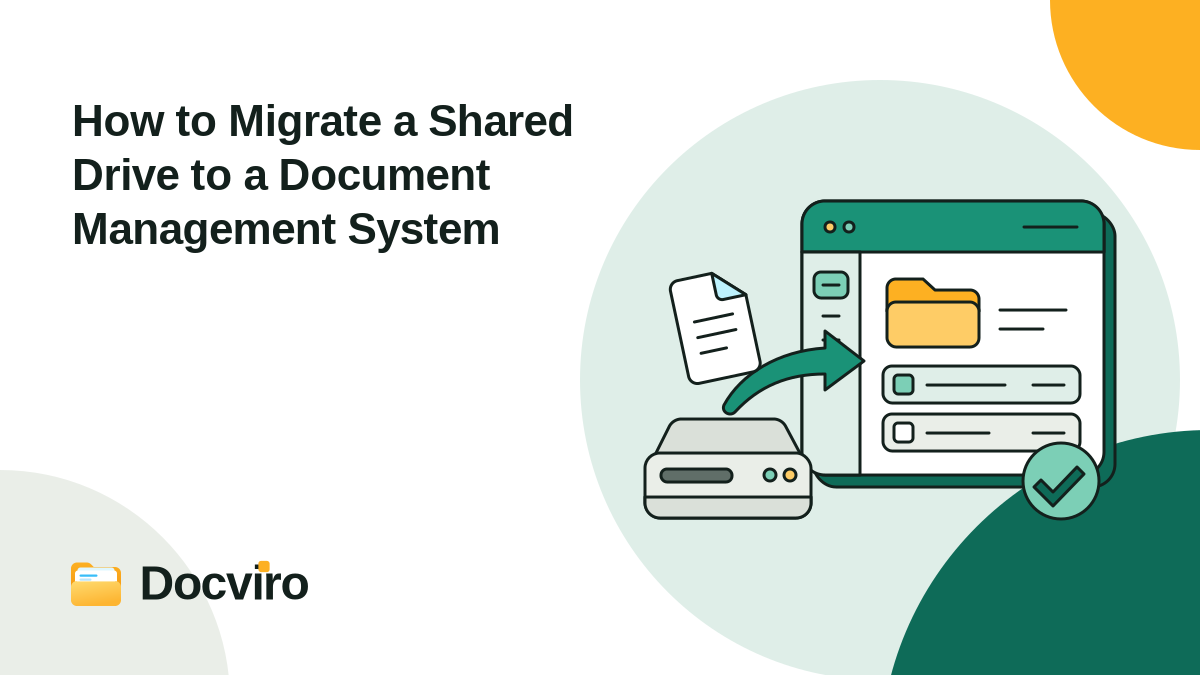
To migrate from a shared drive to a document management system (DMS), work in this order: inventory what is on the drive, delete or archive what you no longer need, design the new folder and metadata structure, map permissions to groups, test with a pilot team, then move the rest in waves and make the old drive read-only. Do not copy everything as-is. Moving clutter from one place to another keeps the clutter.
Most small and mid-sized businesses can do this without outside consultants if they plan first. The planning steps (inventory, cleanup, structure and permissions) take longer than the file transfer itself. They also decide whether people can find things on day one. The guide below walks through each step, the decisions you need to make, and the mistakes that cause the most rework.
Before You Start: Define the Scope and the Goal
Write down why you are moving. Common reasons include:
- People cannot find the current version of a file
- Nobody knows who has access to what
- Scanned documents cannot be searched
- Approvals happen over email with attachments
- You need retention rules or an audit trail for compliance
These reasons shape your design. If search is the main problem, metadata and OCR matter most. If access control is the problem, spend more time on permissions. If you are still deciding whether a DMS is worth it, read Shared Drive vs. Document Management System: Which Do You Need? first.
Then agree on scope:
- Which shares or drives are in scope. Department shares, a scan folder, a personal drive mapped as a team drive?
- Who owns the project. One person who can make decisions, plus one contact in each department who knows its files.
- A target date for when the shared drive becomes read-only.
- What stays behind. Application data, databases, software installers and system backups usually do not belong in a DMS.
Step 1: Inventory the Shared Drive
You cannot plan a move without knowing what you have. Run a report that lists, for every file:
- Full path and file name
- File type (extension)
- Size
- Last modified date
- Owner or creator, where available
On Windows file servers, a disk analysis tool or a short PowerShell script that exports Get-ChildItem results to CSV will do this. Most cloud drives offer an admin report or export. Open the result in a spreadsheet and look for patterns.
What to Look For
- Total volume and file count by top-level folder, so you can plan migration waves.
- Stale content. Sort by last modified date. Folders nobody has touched in years are candidates for archiving or deletion.
- Duplicates. Look for identical names and sizes, or use a tool that compares file hashes. Copies named "final", "final v2" and "final USE THIS" are common.
- Problem files. Very long paths (Windows has historically limited paths to 260 characters), unusual characters in names, password-protected files, and very large files such as video.
- Linked files. Spreadsheets that reference other workbooks by drive letter or UNC path (such as
\\server\share), Access databases and macro-enabled files can break when moved. List them and test them separately.
Step 2: Clean Up Before You Move
Sort content into three groups. Records managers often call the clutter ROT: redundant, obsolete and trivial.
| Decision | What goes here | What to do |
|---|---|---|
| Migrate | Active files and records people still use or must keep | Move to the DMS with metadata and permissions |
| Archive | Files you must keep for legal or business reasons but rarely open | Move to an archive area with restricted access and a retention rule |
| Delete | Duplicates, drafts of finished work, personal files, expired records | Delete after the folder owner confirms |
Ask each department contact to sign off on their folders. People are more willing to delete when they decide, not IT.
Check your retention obligations before deleting anything. Tax, payroll, contract and employee records often have minimum retention periods, and anything under a legal hold must be kept. If you do not have a retention schedule yet, Document Retention Policies Explained covers how to build one.
Cleanup also matters for privacy. GDPR's storage limitation principle says personal data should not be kept longer than needed for its purpose, and the CCPA gives California consumers rights such as deletion that are easier to honor when you know where their data lives. A migration is a good moment to remove personal data you have no reason to keep.
Step 3: Design the New Structure
The biggest mistake is recreating the old folder tree exactly. Deep, inconsistent folders are usually why people cannot find things. A DMS lets you combine a shallower folder structure with metadata.
Folders vs. Metadata
Use folders for things that control access and broad grouping. Use metadata for things people search and filter by.
| Use folders for | Use metadata for |
|---|---|
| Departments (Finance, HR, Operations) | Document type (invoice, contract, policy) |
| Access boundaries (HR confidential, Board) | Client, vendor or project name |
| Major record groups (Contracts, Policies) | Dates (effective, expiry, invoice date) |
| Archive areas | Status (draft, approved, superseded) |
A practical rule: keep folder depth to around three or four levels. If you find yourself creating a folder for every year, client and document type, those should probably be metadata fields instead.
Define Your Metadata Fields
Start small. Five to eight fields across the whole system is easier to keep consistent than thirty. For each field, decide:
- The name and what it means
- Whether it is required
- Allowed values (use pick lists where possible, not free text)
- Which document types it applies to
For more detail, see Metadata Best Practices.
Set Naming Conventions
Even with metadata, consistent file names help. A common pattern is YYYY-MM-DD_Party_DocumentType, for example 2025-03-14_AcmeCorp_ServiceAgreement. Avoid version numbers in file names; the DMS should track versions for you.
Step 4: Map Permissions
Shared drive permissions tend to grow messy over time: individual users added to folders, inheritance broken in odd places, and former employees still listed. Do not try to copy these one-to-one.
- Export current permissions for the top-level folders so you know what exists today.
- Define groups by role, such as Finance, HR, Managers and All Staff.
- Assign permissions to groups, not individuals, at the top folder level wherever possible.
- Decide permission levels: view only, edit, and manage or admin.
- List exceptions explicitly, such as HR personnel files or board documents, and get the owner to confirm who should see them.
- Plan external access. Instead of giving outsiders accounts or emailing attachments, use expiring share links.
Have each department contact review the permission map before migration. Fixing access after people have started working is far more disruptive.
Step 5: Plan for Compliance Requirements
If you handle regulated data, check a few things before moving it:
- Data processing agreement. Under GDPR, a cloud DMS provider processing personal data on your behalf is a processor, and Article 28 requires a contract with specific terms.
- Data location. If you have customers or employees in the EU, know where the provider stores data and what transfer mechanisms apply.
- HIPAA. US covered entities and business associates storing protected health information need a business associate agreement with the provider.
- Retention rules. Decide which document types get which retention periods, so you can apply them during migration rather than afterward.
- Audit trail. Note that most shared drives do not keep a reliable history of who opened a file. Your audit log will start from the migration date, so keep any existing logs you are required to retain.
Step 6: Run a Pilot
Pick one team with a manageable amount of content and willing people. Migrate their files, apply metadata and permissions, and have them work in the DMS for one to two weeks.
Check:
- Can people find files with search and filters?
- Are permissions correct, with nothing over-shared or locked out?
- Did scanned PDFs become searchable?
- Did linked spreadsheets and templates still work?
- Were file names, dates and folder paths handled as expected?
- Is the metadata scheme practical, or are fields being skipped?
Adjust the structure based on what you learn. Changing it after one team is cheap. Changing it after the whole company has moved is not.
Step 7: Migrate in Waves and Cut Over
Move one department or folder group at a time rather than everything over a weekend. Each wave follows the same pattern.
Cutover Checklist for Each Wave
- Back up the source folders.
- Announce the date and tell users what will change.
- Freeze the source. Set the folders to read-only so no one saves new work there during the move.
- Migrate the files and apply metadata and permissions.
- Verify file counts and total size against the inventory, and spot-check a sample of files by opening them.
- Fix broken links in spreadsheets, templates and documentation.
- Update bookmarks and shortcuts, and remove the old mapped drive from computers when the wave is complete.
- Keep the old share read-only for a set period, such as one to three months, as a safety net. Then archive and remove it.
On version history: most migrations bring over the current version of each file, not the full history from the old drive. Decide whether that is acceptable. If older versions matter for a few critical documents, export them separately or keep them in the read-only archive.
Step 8: Train People and Retire the Old Habits
The migration fails if people keep saving to their desktop or emailing attachments. Keep training short and task-based:
- How to find a document (search, filters, recent files)
- How to save a new document with the right metadata
- How to share a file with someone outside the company
- How to check versions and restore an older one
- Who to ask for access
Write a one-page quick guide and name a go-to person in each department for the first month. Once all waves are done, remove write access to the old drive completely so it cannot drift back into use.
Common Shared Drive Migration Mistakes
- Copying everything as-is. You move the mess and pay to store it.
- Skipping the permission review. Old over-sharing follows you to the new system.
- Too many metadata fields. People skip them, and search gets worse, not better.
- No freeze period. Files saved to the old drive mid-migration get lost.
- Forgetting linked files. Broken spreadsheet links and templates erode trust fast.
- Running both systems indefinitely. If the old drive stays writable, people will keep using it.
How Docviro Handles Migration From a Shared Drive
Docviro is a cloud DMS built for small and mid-sized businesses, and its features map to the steps above.
- Folders with permissions. You can recreate a simplified folder structure and set permissions on folders, so the group-based permission map from Step 4 can be applied directly.
- Full-text search with OCR. Uploaded documents are indexed for full-text search, and scanned PDFs and images are processed with OCR so their text becomes searchable. See document search and OCR.
- AI metadata extraction. Docviro can extract metadata such as dates, parties and amounts from documents, which reduces manual tagging when you move large batches. Review extracted values during the pilot to confirm they fit your scheme.
- AI summaries and chat on documents. Useful when someone needs to understand an older file quickly without reading it end to end.
- Version history. New edits after migration are tracked as versions, so naming files "final v2" is no longer necessary.
- Retention rules and audit logs. You can apply retention rules to migrated records and keep a log of activity from the migration date forward.
- Secure sharing. Expiring links replace email attachments for external partners.
- Approval workflows and electronic signatures. Once documents are in place, approvals and signing can happen in the same system, with a certificate of completion and a public verification page for signed documents.
FAQ
How long does a shared drive migration take?
It depends mostly on how much cleanup and planning you need, not on the file transfer. A small team with a tidy drive may finish in a few weeks, while a company with years of unmanaged folders should expect longer. Running a pilot and moving in department waves keeps each step manageable.
Should I keep the same folder structure in the DMS?
Usually not. Keep folders for access control and broad grouping, and move details like year, client and document type into metadata. A shallower structure combined with search and filters is easier to maintain and easier to navigate.
Will file version history carry over from the shared drive?
In most migrations, only the current version of each file moves over. If you need older versions of specific documents, export them separately or keep the old drive read-only as an archive for a defined period. Version tracking in the DMS starts once the file is uploaded.
Do I need to delete old files before migrating?
You do not have to, but you should. Moving duplicates and obsolete files raises storage costs and clutters search results. Check retention requirements and legal holds first, and have folder owners approve deletions.
What should not be moved into a DMS?
Databases, application data, software installers and system backups generally belong elsewhere. Very large media files may also be better in dedicated storage. A DMS is designed for business documents and records that people need to find, share, approve and retain.