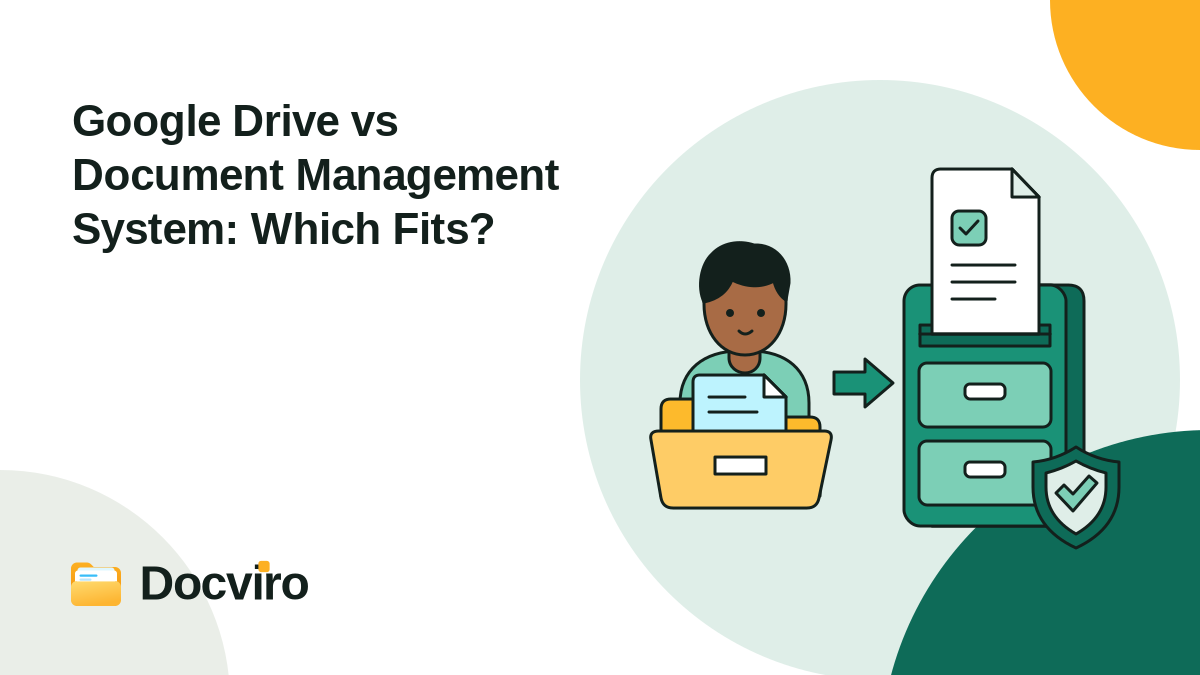
A shared drive is a place to store files. A document management system (DMS) is a place to manage them. That means controlling who sees what, tracking every version, finding content inside scanned files, routing documents for approval and signature, and keeping or deleting records on a schedule. If your team only needs a common folder for a handful of working files, a shared drive is often enough. If you handle contracts, invoices, HR files, or anything an auditor, regulator, or customer might ask about, you will likely outgrow it.
The tipping point is rarely storage space. It is usually one of these: people can't find the right file, nobody is sure which version is final, access has sprawled beyond what anyone can explain, or you need to prove what happened to a document and when. This guide explains the real differences, when a shared drive is still the right call, and how to move to a DMS without losing a week of productivity.
What counts as a shared drive
"Shared drive" covers a few different setups that behave in similar ways:
- On-premises network drives. A file server or NAS box mapped as a drive letter, such as the familiar S: or Z: drive.
- Cloud file storage. Shared folders in Google Drive, Microsoft OneDrive or SharePoint document libraries used as plain folders, Dropbox, Box, and similar services.
- Synced folders. Any setup where a folder on each laptop mirrors a central copy.
All of these are built around the folder tree. Organization depends on how people name files and where they put them. Cloud services have added useful extras, including basic version history, link sharing, and search, but the core model is still "put the file in the right folder and hope everyone else does too."
What a document management system adds
A DMS also stores files, but it treats each document as a managed record rather than a loose file. If you want the full definition, see our guide on what a document management system is. In practice, a DMS typically adds:
- Metadata such as document type, client, vendor, contract value, or expiry date, so you can filter and report without relying on folder paths.
- Full version control with check-in, check-out, or clear version labels, plus the ability to compare and restore.
- Full-text search with OCR, so scanned PDFs and photos of paper documents become searchable.
- Granular permissions at folder and document level, with inheritance you can actually audit.
- Workflows for review, approval, and electronic signature.
- Audit logs that record who viewed, edited, shared, downloaded, or deleted a document.
- Retention rules that keep records for a required period and flag or dispose of them afterward.
Shared drive vs. document management system at a glance
| Capability | Typical shared drive | Document management system |
|---|---|---|
| Organization | Folder tree and file names | Folders plus metadata, tags, and document types |
| Search | File names; content search varies, scans usually not searchable | Full-text search including OCR on scanned files |
| Versioning | Often overwrite, or basic history with limited retention | Complete version history with restore and comparison |
| Permissions | Folder-level, tends to sprawl over time | Role- and folder-based, reviewable, with inheritance controls |
| External sharing | Open links, sometimes no expiry | Expiring, revocable links with access tracking |
| Approvals | Email threads and "final_v3" files | Defined approval steps with a recorded outcome |
| E-signatures | Separate tool, signed copy re-uploaded manually | Built in or integrated, signed copy stored with evidence |
| Audit trail | Limited or admin-only, hard to interpret | Per-document activity log |
| Retention | Manual, usually nobody deletes anything | Rules by document type with review and disposal |
| Cost | Low or already included in your office suite | Additional subscription |
The last row matters. A shared drive often looks free because it comes with your email and office software. The real cost shows up in time spent searching, recreating lost work, and scrambling during audits.
Where shared drives start to break
Finding things
Shared drives depend on everyone following the same folder and naming conventions. They rarely do. Over a few years you end up with "Invoices," "Invoices 2023," "AP - Invoices (old)," and a personal folder where someone saved everything. Scanned documents are the bigger problem: a scanned invoice saved as "Scan_0042.pdf" is an image, and unless your tool runs OCR on it, a search for the vendor name will not find it.
Knowing which version is final
File names like "Proposal_FINAL_v2_JM_edits.docx" are a symptom. Some cloud drives keep a version history, but it is often tied to a single file. When someone downloads a copy, edits it, and uploads it as a new file, the history breaks. Those histories may also be limited in how long they keep older versions, depending on the service and plan. A DMS keeps one document with a clear lineage of versions. We cover why this matters in more depth in Why Every Organization Needs Version Control.
Permissions and sharing
On a shared drive, access tends to grow and never shrink. People get added to a folder for one project and keep access for years. Former contractors still hold links. Cloud drives make it easy to create an "anyone with the link" share that never expires. Asking "who can see our payroll files right now?" can turn into an afternoon of clicking through folder settings.
Approvals and signatures
Without a workflow, approvals happen in email: "Looks good, go ahead." That reply lives in one person's inbox, separate from the document it approved. Signatures typically run through a separate tool, and someone has to remember to save the signed PDF back to the right folder. When an auditor asks who approved a purchase order and which version they saw, the answer requires detective work.
Retention, privacy, and compliance
This is where the gap is widest, and where it can carry real risk:
- GDPR requires that personal data be kept no longer than necessary for its purpose (the storage limitation principle) and that you can respond to access and erasure requests. That is hard to do when copies of the same employee file sit in five folders.
- CCPA, as amended by the CPRA, gives California residents rights to know, delete, and correct personal information, and expects businesses to disclose how long they retain each category of it.
- HIPAA requires covered entities and business associates to implement access controls and audit controls for electronic protected health information. A plain shared drive rarely provides a usable record of who accessed a given file.
- Tax and employment rules in both the US and EU set minimum retention periods for financial and HR records, which means you need to keep certain documents and be able to find them.
A shared drive can't enforce any of this on its own. Our guide to document retention policies explains how to build a schedule. A DMS is what lets you apply it consistently.
When a shared drive is still enough
A DMS is not the right answer for everyone. A shared drive is usually fine when:
- Your team is small and works on a limited set of internal documents.
- You don't handle regulated data such as health records, financial account data, or large volumes of personal data.
- Documents are mostly drafts and working files, not contracts or records you must retain.
- You rarely share files with outside parties, or only through controlled channels.
- Nobody asks you to prove who approved or accessed something.
If that describes you, invest in a clear folder structure, a naming convention, and a quarterly permission review. That alone fixes a lot.
Signs it's time to move to a DMS
The move usually makes sense once several of these are true:
- People regularly ask colleagues where a file is, or recreate documents they can't find.
- You scan paper invoices, receipts, or signed forms and can't search their content.
- You've sent or signed the wrong version of a contract or proposal at least once.
- Approvals live in email and chat, and reconstructing them takes effort.
- You share sensitive files with clients, vendors, or auditors through open links.
- You have customers, auditors, or certifications (such as ISO 9001 or ISO 27001) that require controlled documents and evidence.
- You can't say with confidence who has access to HR, finance, or client folders.
- Nobody has ever deleted anything, because nobody knows what is safe to delete.
How to migrate from a shared drive to a DMS
Moving does not have to be a big-bang project. A practical sequence:
- Inventory and clean up first. Identify duplicates, obsolete drafts, and folders no one has touched in years. Don't migrate clutter.
- Design a lean structure. Use a shallow folder tree by department or function, and let metadata handle the rest, such as client, year, and document type.
- Define document types and retention. Decide what counts as an invoice, contract, or HR record, and how long each must be kept.
- Map permissions to roles. Start from who needs access, not from who currently has it.
- Migrate in waves. Start with one department or one document type, such as accounts payable, and learn before moving the rest.
- Set the shared drive to read-only. Once a wave is migrated, lock the old location so new files don't keep landing there.
- Turn on workflows last. Once people trust the new home for documents, add approvals and signatures.
If your shared drive is SharePoint or OneDrive and you are weighing whether to build on it or switch, our Docviro vs. SharePoint comparison covers the trade-offs.
How Docviro handles the move from shared drive to DMS
Docviro is a cloud DMS designed for small and mid-sized teams that have outgrown a shared drive but don't want an enterprise implementation project. It keeps the familiar folder model and adds the management layer on top:
- Folders with permissions. You organize documents in folders and set access by user or group, so you can see and change who has access to HR, finance, or client folders in one place.
- Version history. Every upload of a document becomes a new version of the same record, and earlier versions can be viewed and restored. See version control in Docviro.
- Search with OCR. Docviro runs OCR on scanned PDFs and images, so full-text search covers their content as well as file names.
- AI assistance. AI summaries, metadata extraction, and chat on documents help you classify incoming files and pull out details like dates, parties, or amounts without reading every page. Extracted metadata should still be reviewed for important records.
- Approval workflows. Documents can be routed through defined approval steps, with the outcome recorded alongside the document.
- Electronic signatures. Signatures happen inside Docviro, and each completed signing produces a certificate of completion and a public verification page, so the signed file and its evidence stay together.
- Secure sharing. External links can be set to expire, replacing open-ended "anyone with the link" shares.
- Audit logs and retention rules. Activity on documents is logged, and retention rules let you apply your retention schedule by document type instead of relying on manual cleanup.
A common starting point is to move one document-heavy process, such as vendor invoices or employee files, into Docviro first, then expand once the team is comfortable.
FAQ
Is Google Drive or OneDrive a document management system?
They are cloud file storage services with some document management features, such as basic version history, sharing controls, and search. They generally lack built-in approval workflows, retention rules by document type, OCR-driven search across all scans, and detailed per-document audit trails suited to compliance work. Some organizations build these on top with add-ons or configuration, which takes time and admin skill.
Can I keep using my shared drive alongside a DMS?
Yes, and many teams do during a transition. The key is a clear rule about what lives where, for example drafts and scratch files on the shared drive and final, signed, or regulated documents in the DMS. Without that rule, you end up with two places to search and two versions of the truth.
Is a DMS required for GDPR or HIPAA compliance?
Neither GDPR nor HIPAA names a specific type of software. They require outcomes such as limited retention, access control, the ability to respond to data subject requests, and for HIPAA, audit controls on electronic health information. A DMS makes those outcomes much easier to achieve and demonstrate than a plain shared drive.
How long does it take to move from a shared drive to a DMS?
It depends mostly on how much cleanup your existing files need, not on the volume of data. A small team migrating one department in waves can often be working in the new system within weeks. Planning your structure, document types, and permissions before you upload anything is what keeps the timeline short.