The best document management software for a small business is a cloud system you can set up without dedicated IT staff. It should cover the essentials in one place: folder permissions, automatic version history, full-text search that also reads scanned files (OCR), approval workflows, electronic signatures, secure external sharing, audit logs and retention rules. For most small and mid-sized businesses, that means a dedicated cloud document management system (DMS) rather than a plain shared drive or an enterprise platform built for companies with large IT departments.
That said, the right choice depends on where you start. If your team already lives in Microsoft 365 and has someone who can configure it, SharePoint may be enough. If you only need to store and sync files, Google Drive or Dropbox may cover you. If you work in a heavily regulated field with complex records requirements, an enterprise DMS may justify its cost. This guide explains each category, the features that matter, the compliance questions to ask and a simple process for picking a winner. A note on transparency: Docviro publishes this blog and makes a DMS, so we describe our product in its own section and keep the rest of the guide vendor-neutral.
What document management software actually does
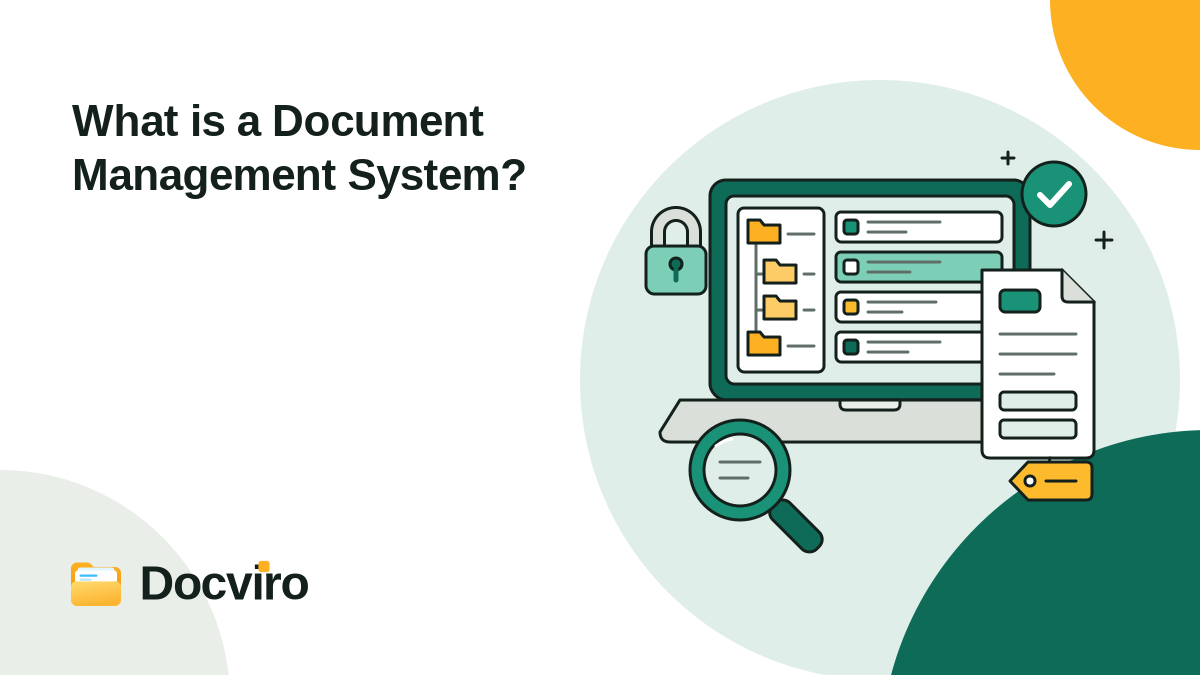
A DMS is more than storage. Storage answers the question of where a file lives. A DMS also answers who can see it, which version is current, who changed it and when, who needs to approve it, how long it must be kept and how to find it again in seconds.
If you are still deciding whether you need a DMS at all, our guide to shared drives vs. document management systems walks through the tipping points. Common signs you have outgrown a shared drive include:
- Files named final_v3_REALLY_FINAL and nobody sure which one was sent
- Contracts and invoices that exist only as scanned PDFs nobody can search
- Approvals happening in email threads with no record of who said yes
- Sensitive folders shared by link with no idea who still has access
- No consistent rule for when old records can be deleted
The main options for small businesses in 2027
Rather than ranking individual products on criteria that change with every release, it is more useful to compare the categories. Most tools fit into one of five groups.
| Category | Typical examples | Best for | Watch out for |
|---|---|---|---|
| File sync and share | Google Drive, Dropbox, OneDrive | Teams that mainly need storage and real-time collaboration | Limited workflows, retention and audit detail; permissions sprawl |
| Microsoft SharePoint | SharePoint Online in Microsoft 365 | Businesses standardized on Microsoft with in-house or contracted IT | Setup and governance take real effort; easy to misconfigure |
| All-in-one cloud DMS for SMBs | Docviro and similar platforms | Teams wanting DMS features without a long implementation | Check integrations, data residency and export options |
| Enterprise DMS / ECM | M-Files, OpenText, Laserfiche and others | Regulated or larger organizations with complex records needs | Higher cost, longer rollouts, often partner-led implementation |
| Single-purpose tools | DocuSign for e-signature, industry-specific portals | Solving one problem well | Documents end up scattered across several systems |
File sync and share
These tools are familiar, inexpensive and excellent for co-editing. Their weak spots for document management are structure and control. Version history exists but is often limited in duration or depth depending on the plan, approvals are usually manual, and retention and audit features tend to sit in higher-tier admin plans. They work well as a starting point, less well as a system of record for contracts, HR files or financial documents.
SharePoint
SharePoint is powerful and included in many Microsoft 365 business plans, which makes it tempting. The trade-off is that it is a toolkit, not a finished product. Someone has to design the site structure, metadata, permissions and workflows (often through Power Automate), and keep them tidy over time. If you have that person, it can work well. If you do not, it can become a more complicated shared drive.
All-in-one cloud DMS
This category targets small and mid-sized businesses specifically. The goal is to bundle the DMS essentials, including e-signature and workflows, into a product a non-specialist can configure in days rather than months. Quality varies, so use the feature checklist below to separate real capability from marketing pages.
Enterprise DMS
Enterprise platforms offer deep records management, advanced compliance controls and on-premises or hybrid options. They suit organizations with complex classification schemes or strict regulatory oversight. For a 20-person firm, they are often more system than you need.
Single-purpose tools
A dedicated e-signature app or an accounting document portal can be excellent at one job. The risk is fragmentation: the signed contract lives in one tool, the draft in another and the approval in email. If you go this route, plan how documents flow back into one central repository.
Features that matter most
Use this list as a scorecard during demos and trials. Not every business needs every item, but the first six are close to non-negotiable.
- Granular permissions. Folder- and document-level access, roles that map to your teams, and easy external guest access that does not require giving away the whole drive.
- Automatic version control. Every save creates a version you can view, compare and restore, with a clear record of who changed what.
- Full-text search with OCR. Search should read inside PDFs, Office files and scanned images, not just file names. This is the feature most teams notice first after switching.
- Metadata. Fields such as client, contract end date or invoice number make filtering and automation possible. Automatic metadata extraction saves hours of manual tagging.
- Audit logs. A record of views, downloads, edits, shares and deletions. Essential for compliance and for answering the question of what happened to a file.
- Secure sharing. Expiring links, optional passwords, view-only or download controls, and the ability to revoke access instantly.
- Approval workflows. Route documents for review and sign-off with reminders and a recorded outcome.
- Electronic signatures. Built-in signing saves a separate subscription and keeps signed documents next to their drafts. Look for a certificate of completion that records signers, timestamps and events.
- Retention rules. Automatically keep records for the required period and flag or remove them afterward.
- AI assistance. Summaries, question answering on documents and smart extraction are now common. Ask how the vendor handles your data in AI features, including whether it is used to train models.
- Integrations and export. Connections to email, accounting and CRM tools, plus a clean bulk export so you are never locked in.
- Admin simplicity. Can an office manager add users, adjust permissions and build a workflow without calling IT?
Compliance questions to ask any vendor
Small businesses are not exempt from data protection and records rules. Which ones apply depends on your industry and where your customers are, but these questions come up often.
Electronic signatures: ESIGN, UETA and eIDAS
In the United States, the federal ESIGN Act and the Uniform Electronic Transactions Act (adopted by most states) give electronic signatures the same legal effect as handwritten ones for most business transactions, provided the parties consent and records are retained accurately. A few document types, such as wills and certain notices, are excluded. In the EU, eIDAS says an electronic signature cannot be denied legal effect solely because it is electronic, and defines three levels: simple, advanced and qualified. Only a qualified electronic signature automatically has the equivalent effect of a handwritten signature across all member states. Most everyday commercial agreements do not require a qualified signature, but some transactions and national rules do, so confirm which level you need.
Personal data: GDPR and CCPA
If you handle personal data of people in the EU, GDPR requires a data processing agreement with your DMS vendor, appropriate security measures and the ability to locate, export and delete personal data when requested. Ask where data is hosted and how transfers outside the EU are covered. In California, the CCPA, as amended by the CPRA, gives consumers rights to know about and delete their personal information if your business meets its thresholds. Fast search and retention rules make both regimes easier to manage.
Health information: HIPAA
If you are a covered entity or business associate storing protected health information, any vendor that stores that information on your behalf is itself a business associate and must sign a business associate agreement (BAA). Do not upload patient data to any system, ours included, until a BAA is in place.
Understanding pricing
Prices change too often for a fixed list to stay useful, so compare structure instead:
- Per-user vs. flat pricing. Per-user plans scale smoothly; check whether external guests or signers count as users.
- Storage limits. Scanned archives add up quickly. Find out what happens when you exceed your allowance.
- Feature tiers. Audit logs, retention rules, workflows and AI are often reserved for higher plans. Price the tier you actually need.
- Add-ons. E-signature envelopes, OCR page limits or AI credits may be billed separately.
- Total cost. Include implementation time, training and any tools the DMS replaces, such as a standalone e-signature subscription.
How to choose in five steps
- List your top three problems. Lost versions, unsearchable scans, slow approvals, risky sharing? Rank them. They decide the shortlist.
- Map your must-have features. Use the checklist above and mark each item as must-have, nice-to-have or irrelevant.
- Shortlist two or three tools. Pick at least one from a different category so you are comparing approaches, not just brands.
- Run a real trial. Upload a representative folder that includes scanned PDFs, set up permissions for two teams, build one approval workflow and send one document for signature. Ask the people who will use it daily to do the testing.
- Check the exit. Before signing, confirm you can export all documents, versions and metadata in standard formats.
Red flags during evaluation
- Search that only matches file names, or OCR offered as a paid extra with tight page limits
- Audit logs that are missing or only available on the most expensive plan
- Vague answers about where data is stored or how AI features use your content
- No way to set link expiry or revoke external access
- Implementation timelines measured in months for a team of 25
How Docviro handles document management for small businesses
Docviro is a cloud DMS built for small and mid-sized businesses in the United States and Europe. It brings the features in the checklist above into a single workspace:
- Folders with permissions so each team and external guest sees only what they should.
- Version history that records every change and lets you restore earlier versions.
- Full-text search with OCR that reads inside PDFs, Office files and scanned images. See how it works on the document search and OCR feature page.
- AI summaries, metadata extraction and chat on documents for faster review and tagging.
- Approval workflows that route documents for sign-off and record the outcome.
- Electronic signatures with a certificate of completion and a public verification page where recipients can confirm a signed document.
- Secure sharing with expiring links.
- Audit logs and retention rules to support compliance and records policies.
If you are weighing Docviro against a Microsoft-based setup, our Docviro vs. SharePoint comparison covers the differences in setup effort and built-in features. Plan details are on the pricing page. As with any vendor, run a trial on your own documents before you decide.
FAQ
Is Google Drive or Dropbox enough for a small business?
For storage and collaboration, often yes. They become limiting when you need structured approvals, detailed audit trails, retention rules or reliable search inside scanned documents. Many businesses move to a DMS once contracts, HR files or regulated records are involved.
How long does it take to set up a DMS?
It depends on the tool and how much you migrate. A cloud DMS built for small businesses can usually be configured for a first team within days, while enterprise systems and heavily customized SharePoint sites can take weeks or months. Starting with one department and expanding works better than migrating everything at once.
Do I need a separate e-signature tool?
Not necessarily. Many document management platforms now include e-signature, which keeps signed files next to their drafts and approvals. A standalone tool may still make sense if you need advanced features such as qualified electronic signatures under eIDAS or high-volume signing integrations.
Are AI features in document management software safe to use?
They can be, but ask specific questions. Find out whether your documents are used to train models, where processing happens and whether AI features respect existing permissions. For sensitive data such as health records, confirm the vendor's agreements cover AI processing before enabling it.